Replace Excel with an app: when to switch, and the shared-file problem
Replacing Excel with an app? A checklist to decide, what a shared Excel file really allows when several people edit at once, and your options for moving on.
Excel is enough as long as one or two people look after the file, each in their own area, and a mistake can be put right without damage. It is time to replace Excel with an app when the file has become the working tool of a whole team: several people edit the same rows, copies contradict each other, information is typed in again elsewhere, and nobody dares touch the macros any more.
The shared file is nearly always the first warning sign. This article starts with a checklist to help you decide, then explains what editing at the same time really does in Excel, based on Microsoft’s documentation as of 8 November 2026. Then come the options for moving on, compared honestly, and an example built on a fictional case: an order-tracking file shared by four people.
The checklist: is Excel enough, or is it time to move on?
For each row, pick the column that best describes your file today.
| Sign | Excel is enough | Time to move on |
|---|---|---|
| Who edits | One or two people, each in their own area | Several people, on the same rows, every day |
| Versions | One file, in one place | Copies (“v7_FINAL (2).xlsx”) that contradict each other |
| Retyping | Each piece of information is entered once | The same order is typed again in invoicing, an email, another file |
| Macros | None, or simple macros someone understands | VBA macros nobody dares change, or that only work on one computer |
| Rights | Everyone can see and edit everything | Some columns must be hidden (purchase costs, margins), or approval kept for a few people |
| History | Knowing who changed what hardly matters | You need to know who changed a price, a date or a status, and when |
| Field work | Everything is entered at the office | Information comes from the site, the warehouse or the delivery round, by text message or on paper |
| Size | The file opens and calculates quickly | The file crawls, and tabs feed each other through chains of VLOOKUPs |
| Workflow | No approval, no reminders | An order must be approved above an amount, someone must be notified |
| Stakes | If the file breaks, you rebuild it in an hour | If the file breaks, invoicing or deliveries stop |
How to read the result (this is our rule of thumb; adapt it to your case):
- No box, or one, on the right: keep Excel and improve it. The section “Staying on Excel, but better” is often enough. A cash flow plan kept by one person, for example, does not need an app: see our cash flow plan template.
- Two or three boxes on the right: move to proper co-authoring and structured tables, then keep an eye on it. If one of those boxes is “Rights” or “History”, Excel will only partly solve it.
- Four boxes or more, or “Stakes” on the right: it is time to move on. The file already does the job of an app, without an app’s safeguards.
Size, on the other hand, is rarely the real limit: an Excel sheet can hold 1,048,576 rows. The file gets painful long before that, when formulas hunt for each other from one tab to the next.
Shared Excel files: what editing at the same time really does
Two mechanisms hide behind “shared Excel file”: co-authoring, the current way, and the old shared workbook, which Microsoft keeps for compatibility. They work in completely different ways.
The four conditions for co-authoring
For several people to edit the same workbook at the same time, Microsoft sets four conditions:
- A Microsoft 365 subscription. Co-authoring works with an up-to-date Excel for Microsoft 365, Excel for the web and the mobile apps. Excel 2016, 2019 and 2021 LTSC do not support it.
- A file on OneDrive, OneDrive for Business or SharePoint Online. The files of a Teams channel live on a SharePoint site, so they count. A SharePoint server installed on your own premises does not support co-authoring.
- A workbook in .xlsx, .xlsm or .xlsb format.
- AutoSave switched on, at the top left of the window. It turns on when the file is on OneDrive or SharePoint.
Then click Share, at the top right, and invite people with edit rights.
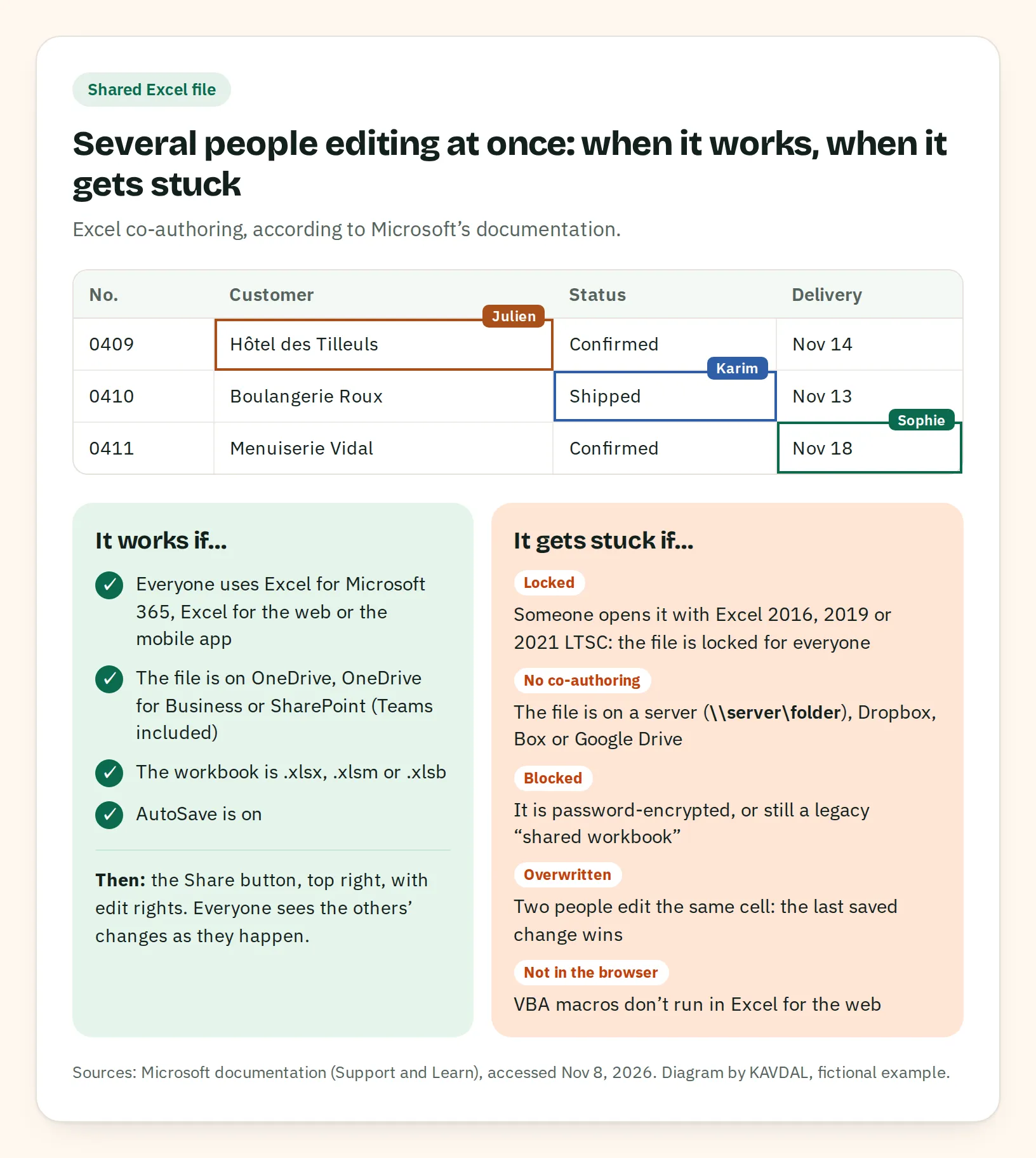
Diagram by KAVDAL based on Microsoft’s documentation, accessed 8 November 2026. Fictional names and customers.
“File locked for editing”: the causes
This is the message Excel shows when simultaneous editing fails. Microsoft lists the causes:
- One person on an incompatible version is enough to lock the file for everyone, even if the others are on Microsoft 365. One computer still on Excel 2019, and the whole team is read-only.
- The file is on a server (a path like
\\server\folder), in a local folder, on Dropbox, Box or Google Drive. These locations do not support co-authoring: one person edits, the others wait. That is the case for many files “shared on the network”. - The workbook is password-encrypted, still a legacy shared workbook, or uses an add-in that blocks co-authoring. Tables and PivotTables set to refresh when the file opens cause the same problem.
- The “other user” is you: the file is still open on another device, or did not close properly. Close it everywhere and wait a few minutes.
What co-authoring does not solve
Co-authoring gets rid of the copies. It does not turn the workbook into an app:
- Conflicts. When two people edit the same cell, “the last change that is saved […] is the one that ‘wins’”, with some exceptions, Microsoft writes. Its advice: give each person their own areas or sheets.
- Rights. You share the whole file, to view or to edit. Protecting a sheet stops people editing locked cells, but Microsoft warns that “worksheet level protection isn’t intended as a security feature”. Within one file, you cannot show an order to the warehouse while truly hiding the purchase cost on the same row.
- History. Review > Show Changes tells you who changed what, where and when, with the previous value, for the past 365 days. But the pane does not track formatting, filtering, charts or PivotTables. A change made with an incompatible version is not tracked and clears the pane.
- Filters. To sort or filter without disturbing others, you have to create a Sheet View. This works in Excel for Microsoft 365 and Excel 2021, on a file stored in OneDrive or SharePoint, and other people can still see these views.
- Macros. An .xlsm workbook can be co-authored, but VBA macros do not run in Excel for the web: you cannot create, run or edit them in the browser. Since 2022, Office for Windows has also blocked by default the macros in files from the internet, email attachments included. The web equivalent is called Office Scripts: a different language, from the JavaScript family, so macros have to be rewritten.
What about the old “shared workbook”?
Before co-authoring, Excel offered the shared workbook. In Excel for Microsoft 365, its buttons have gone from the Review tab: Microsoft says co-authoring is now a better and easier way to share workbooks, and strongly recommends it. The old commands are still there if you add them to the Quick Access Toolbar: Share Workbook (Legacy), Track Changes (Legacy)…
This mode works on a network folder; Microsoft even says not to put the file on OneDrive or SharePoint. Up to 256 people can open the workbook at the same time, but with heavy restrictions:
- no editing in Excel for the web;
- no creating tables, and no adding or changing conditional formatting, data validation or charts;
- no writing, recording, changing or even viewing macros;
- no merging cells, no deleting sheets, no passwords;
- change history kept for only 30 days by default.
If your file “shared on the server” still runs this way, that is a warning sign in itself: it relies on a feature Microsoft labels as legacy and advises against.
Staying on Excel, but better
If the checklist keeps you on the Excel side, these settings fix most of the friction:
- One file, on OneDrive or SharePoint, with co-authoring. Delete the copies, make the old file read-only and check that everyone has a compatible version.
- Structured tables. Select the data, then Home > Format as Table. Each column gets its filter, a formula typed in a column applies to the whole column, and formulas name the table instead of cell addresses.
- Drop-down lists for statuses, with Data > Data Validation > List. Five statuses always written the same way beat twenty variants.
- One area per person, as Microsoft advises: a sheet or columns kept for each person limit conflicts.
- Power Query for imports. Instead of pasting an export every week, Power Query imports it and applies the same fixes at each refresh. The method is in our Excel dashboard template.
- Sheet Views to filter without getting in each other’s way.
- Documented macros, or macros rewritten as Office Scripts if the team works in the browser.
These settings give you neither rights per row nor an approval workflow. If you need them, read on.
The options for moving on, compared
| Option | What you pay (public prices on 8 Nov 2026) | Right when… | Limits |
|---|---|---|---|
| Better Excel | The Microsoft 365 subscription | The checklist gives one box on the right, or none | No rights per row, no workflow |
| Microsoft Lists | Included in Microsoft 365 plans that include SharePoint | The file is a list (one row per order, request, job) | A list, not an app: few business rules |
| No-code tool | Airtable Team: $20 per seat per month. AppSheet: $5 to $20 per user per month. Power Apps Premium: €17.30 excl. VAT. Yearly billing for Airtable and Power Apps | A simple process, few users, someone in-house to build it | A subscription that grows with the team; you depend on the platform |
| Off-the-shelf software | A subscription per user | The need is common (CRM, sales management, scheduling) | You adapt to the software |
| Excel VBA developer | Days of development | The file does its job well and just needs to be made reliable | Macros on desktop only; the file is still a file |
| Custom app | The build, then maintenance | A process specific to your business, several roles, field work, links to your software | Higher upfront cost; choose the provider carefully |
A few pointers to choose.
Microsoft Lists is often forgotten even though it is already there. According to Microsoft, it is available in Microsoft 365 plans that include SharePoint. You create a list straight from an Excel table, up to 5,000 rows, then set versions, approvals and permissions. It is a good step when the file is just a tracking list.
No-code (Airtable, AppSheet, Power Apps) suits a simple process, built by someone in your team who has time to maintain it. The sums change with the number of users. Example for four people: on Power Apps Premium, 4 × €17.30 excl. VAT, so €69.20 a month and €830.40 a year; on Airtable Team, 4 × $20, so $80 a month and $960 a year. That is before the time spent building it. AppSheet Core is included in most paid Google Workspace plans, according to Google. Before you choose, ask how to export your data if you stop.
An Excel VBA developer is the right choice when the file does its job well and only needs to be made reliable: fixing the macros, documenting them, adding checks. The limits stay the same: no macros in the browser, no rights per row, and a file that still depends on whoever knows the code.
A custom app makes sense when the process is your own: several roles, rights, approvals, entries from the field, links to your software. It costs more upfront, then in maintenance, but it belongs to you and is not paid per user. Published price ranges and how to compare quotes are in our article Custom business app cost.
Your shared file becomes an app: one version of the data, rights per person, entry from a phone. First version from €4,500.VAT not applicable, art. 293 B of the French Tax Code.
Example: an order-tracking file shared by four people
Example built on fictional data. An imaginary 15-person wholesale business tracks its orders in the file order-tracking.xlsx, saved on the office server. Four people work in it:
- Julien, in sales, enters the orders;
- Sophie, in sales admin, confirms dates with suppliers;
- Karim, in the warehouse, picks and ships;
- Claire, the managing director, follows delays and monthly sales.
Run through the checklist, the file ticks eight boxes out of ten on the right. Only size and approval workflow stay on Excel’s side.
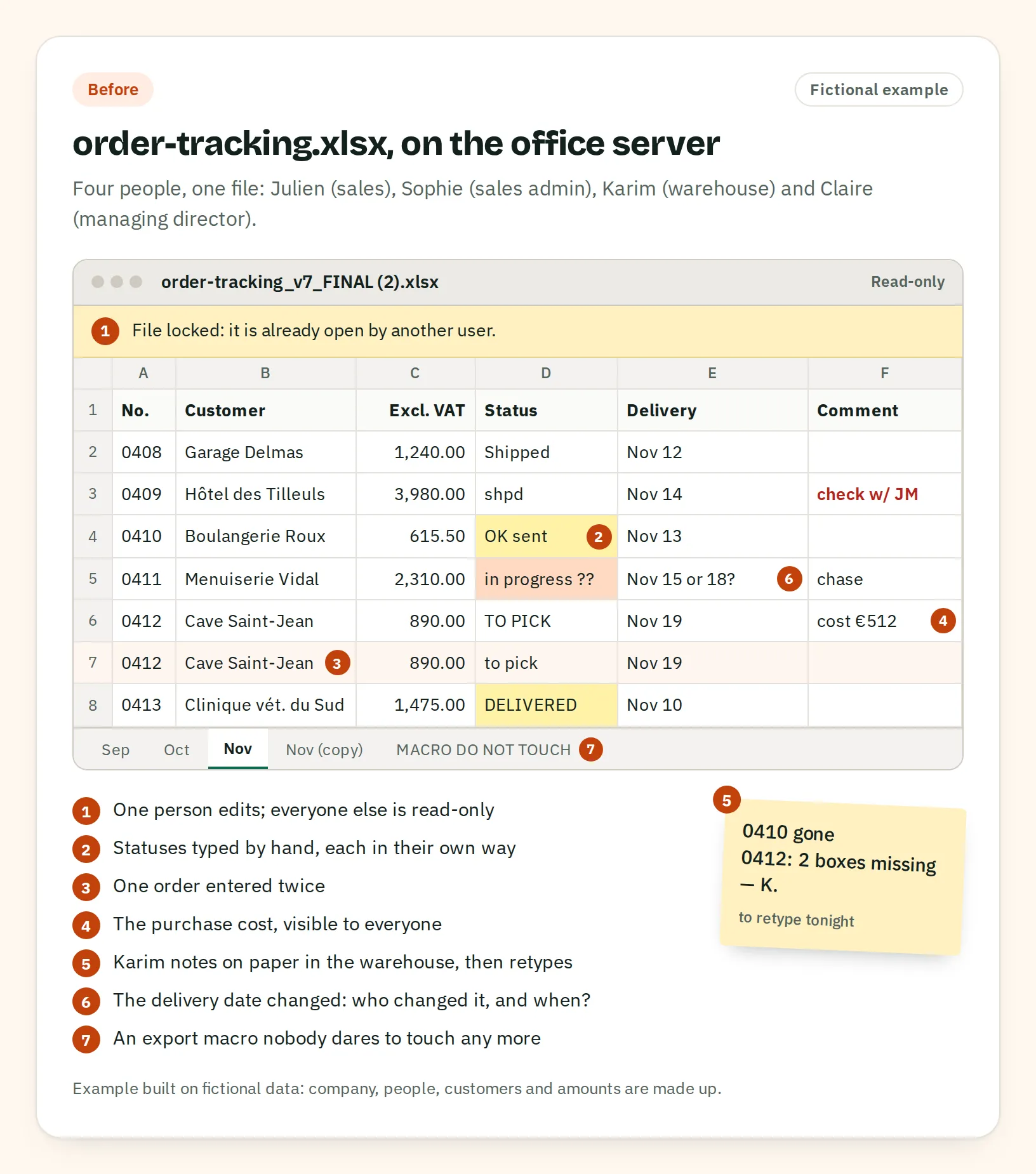
Example built on fictional data: company, people, customers and amounts are made up.
| Situation | Before: the shared file | After: the app |
|---|---|---|
| Editing | One person at a time: the others are read-only | All four at the same time, each on their own screens |
| Order status | Typed by hand: “Shipped”, “shpd”, “OK sent”… | Five fixed statuses, changed with a button |
| Warehouse | Karim prints the list, writes on it, then retypes in the evening | Karim marks the order “picked” on his phone, with a photo of the delivery note |
| Rights | Everyone sees purchase costs and margins | The warehouse sees no prices or margins |
| Who changed what | Nobody knows | Each order has its history: who, what, when |
| Invoicing | An export macro written by a former employee, which only works on the accounts PC | An export to the invoicing software, from any computer |
| Managing director’s view | Open the file, filter, count | Late orders and orders to pick, always on screen |
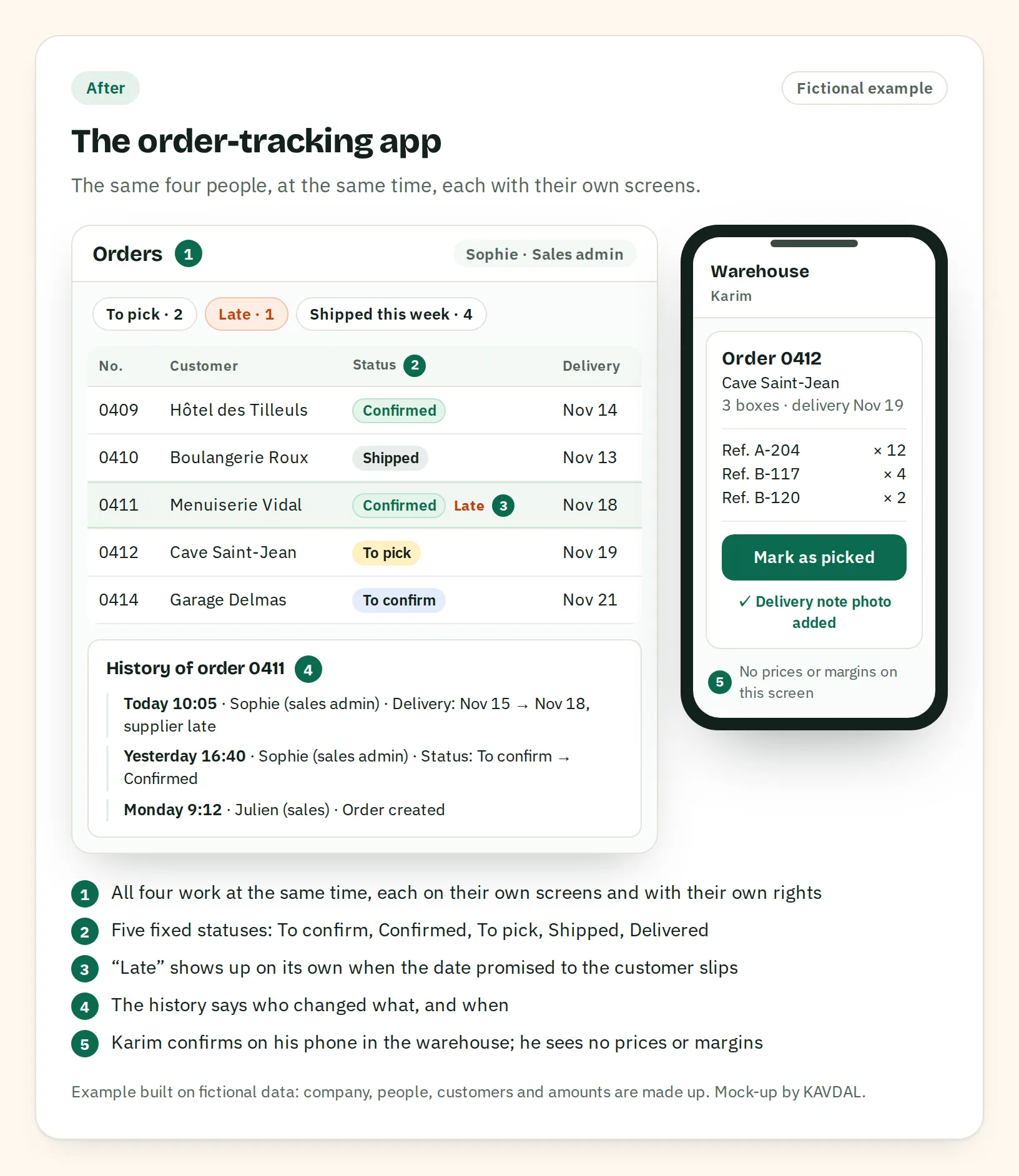
Mock-up by KAVDAL on fictional data.
The first version covers this process only: enter, confirm, pick, ship, export. Stock management will wait for later, if it needs to come at all. Excel does not disappear: the app exports its data for one-off analysis, and a dashboard can read it directly. To get an idea, our demo dashboards open without a form.
We do not give a figure for the time saved here: it depends on your order volume and the time spent retyping. Work it out for your case: hours of retyping per week, multiplied by the loaded hourly cost of the people involved. The calculator on our Websites and apps page does this sum.
Moving from Excel to an app without breaking everything
- Start with one file, the one whose failure costs the most.
- Describe the process, not the file: who enters what, when, who approves, what must come out (PDF, export, email).
- List the columns actually used and their values: statuses, lists, formulas. That is the basis of the future data model.
- Clean up before migrating: duplicates, statuses written ten ways, dates typed as text.
- Keep Excel for analysis: the app exports, Excel or a dashboard reads.
- Switch over on a fixed date, then make the old file read-only. Two tools kept side by side for too long recreate the problem.
- Train each role on its own screens, not on the whole app.
To write the brief and compare quotes, our article Custom business app cost gives eight questions that are enough.
What about KAVDAL?
Replacing a team’s shared file with a simple app is one of the things we do. We deliver a first version focused on one process, with your files migrated, entry from a phone, rights per person, and links to your software and your dashboard. The code and the accounts are in your name. The starting price is shown in the box below; the exact price of your project is set in writing during the diagnostic.
We will also tell you when Excel is enough. If you are near Toulouse or Lyon, the first conversation can take place in person; otherwise, a free 20-minute call is enough to place your file: better Excel, a no-code tool or an app. The offer is detailed on the Websites and apps page.
Frequently asked questions
How can several people edit an Excel file at the same time?
Save it on OneDrive, SharePoint or in a Teams channel, in .xlsx, .xlsm or .xlsb format, with AutoSave on. Then share it with edit rights. Everyone must use Excel for Microsoft 365, Excel for the web or the mobile app.
Why is my shared Excel file locked by another user?
Most often, someone opened it with a version that does not support co-authoring (Excel 2016, 2019 or 2021 LTSC), or the file is on a server, Dropbox or Google Drive. If the message names you, the file is still open on another device: close it everywhere and wait a few minutes.
Can I share an Excel file on a server, without OneDrive?
Not with co-authoring: Microsoft says paths like \\server\folder do not support it. That leaves the old shared workbook, with its restrictions: no tables, no editable macros, no Excel for the web.
Can an Excel file with macros be shared?
Yes, the .xlsm format supports co-authoring. But the macros only run in desktop Excel, never in Excel for the web. And Office for Windows blocks by default those in files from the internet.
How do I see the change history of a shared Excel file?
On the Review tab, choose Show Changes: each entry shows who changed what, where and when, with the previous value, for the past 365 days. Formatting and filters are not included. To go back to an earlier version, use the version history, once nobody is editing the file any more.
What can replace Excel for free?
If you have Microsoft 365 with SharePoint, Microsoft Lists is included in the subscription and can be built from an Excel table. Airtable has a free plan for small needs. Free spreadsheets are still spreadsheets: they do not give you rights per row or an approval workflow.
Do I need an Excel VBA developer or an app?
A VBA developer, if the file does its job well and only needs to be made reliable. An app, if the checklist in this article gives four boxes or more on the “Time to move on” side, or if rights and history matter.
How much does an app to replace an Excel file cost?
It depends on the number of roles, screens and software to connect. The price ranges published in 2026 are gathered in our article Custom business app cost. Our starting price is shown in the box below.
Sources
- Microsoft, “Collaborate on Excel workbooks at the same time with co-authoring”: Microsoft 365 subscription, file on OneDrive, OneDrive for Business or SharePoint Online, .xlsx, .xlsm and .xlsb formats, AutoSave; in a conflict, the last saved change wins; SharePoint on-premises not supported — accessed Nov 8, 2026
- Microsoft, “Excel file is locked for editing”: Excel 2016, 2019 and 2021 LTSC do not support co-authoring; server paths, local folders, Dropbox, Box and Google Drive not supported; shared workbook, password encryption and some add-ins block it — accessed Nov 8, 2026
- Microsoft Learn, “Macros from the internet are blocked by default in Office” (updated 17 July 2026): OneDrive or SharePoint files, including those of a Teams channel; blocked by default in Office for Windows, rolled out from 27 July 2022 in Current Channel — accessed Nov 8, 2026
- Microsoft, “Show changes made in a workbook”: who, where, when, what and the previous value, for the past 365 days — accessed Nov 8, 2026
- Microsoft, “Get help with Show Changes in Excel”: no formatting, filtering, objects or PivotTable operations; the pane is cleared by an incompatible version of Excel — accessed Nov 8, 2026
- Microsoft, “Protect a worksheet”: “Worksheet level protection isn’t intended as a security feature” — accessed Nov 8, 2026
- Microsoft, “Create and manage Sheet Views in Excel”: sort and filter without disturbing others, in Excel for Microsoft 365 and Excel 2021, on a file stored in OneDrive or SharePoint — accessed Nov 8, 2026
- Microsoft, “Work with VBA macros in Excel for the web”: VBA macros cannot be created, run or edited in the browser — accessed Nov 8, 2026
- Microsoft Learn, “Differences between Office Scripts and VBA macros”: VBA on Windows and Mac but not on the web; Office Scripts on the web, Windows and Mac, with a business or education licence — accessed Nov 8, 2026
- Microsoft, “What happened to shared workbooks in Excel?”: buttons removed from the Review tab, co-authoring strongly recommended — accessed Nov 8, 2026
- Microsoft, “About the shared workbook feature”: no Excel for the web; no tables, conditional formatting, data validation, charts or macros; do not put the file on OneDrive or SharePoint — accessed Nov 8, 2026
- Microsoft, “Excel specifications and limits”: 1,048,576 rows by 16,384 columns per sheet; shared workbook: up to 256 users, change history kept 30 days by default, no Excel tables — accessed Nov 8, 2026
- Microsoft, “Overview of Excel tables”: structured references, calculated columns, header filters, total row — accessed Nov 8, 2026
- Microsoft, “Create a list based on a spreadsheet”: import an Excel table into Microsoft Lists, up to 5,000 rows — accessed Nov 8, 2026
- Microsoft, “Create a list from the Lists app”: lists in Microsoft 365, SharePoint and Teams; versions, approvals and permissions — accessed Nov 8, 2026
- Microsoft Tech Community, announcement of 21 July 2020: Microsoft Lists available in Microsoft 365 and Office 365 plans that include SharePoint — accessed Nov 8, 2026
- Microsoft, Power Apps pricing (France, in French): Power Apps Premium at €17.30 excl. VAT per user per month, paid yearly — accessed Nov 8, 2026
- Airtable, pricing: Free plan; Team at $20 and Business at $45 per seat per month, billed annually — accessed Nov 8, 2026
- Google, AppSheet pricing: Starter $5, Core $10, Enterprise Plus $20 per user per month; Core included in most paid Google Workspace plans — accessed Nov 8, 2026
Your shared file becomes an app: one version of the data, rights per person, entry from a phone. First version from €4,500.VAT not applicable, art. 293 B of the French Tax Code.